Secure.AxoSolutions.com is a web site that allows you to view and create AxoSolutions promotions (PPR) from any computer connected to the Internet.
The site is very simple to use and this guide will help you navigate through it.
Log In
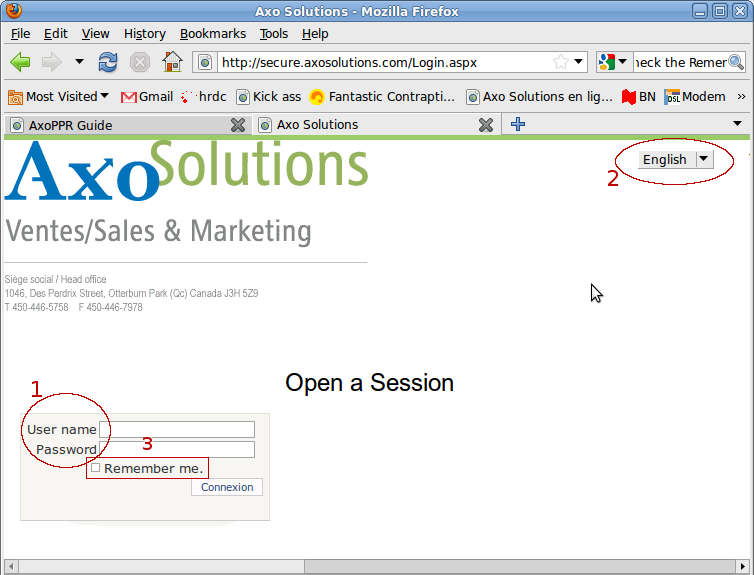
1. First we need to log in to gain access to the site.Type in or paste the User name and Password that were given to you and click on the Connexion button.
2. We can find at the top portion of the screen the "language bar" that allow us to change the web site's language.
If you don't remember your password, contact one of the good people from AxoSolutions (claude.moisan@axosolutions.com or jimmy.tremblay@axomarketing.com).
3. If you are working from your own computer, you can check the "Remember me." checkbox so you won't have to log in every time you open the web site.
Welcome
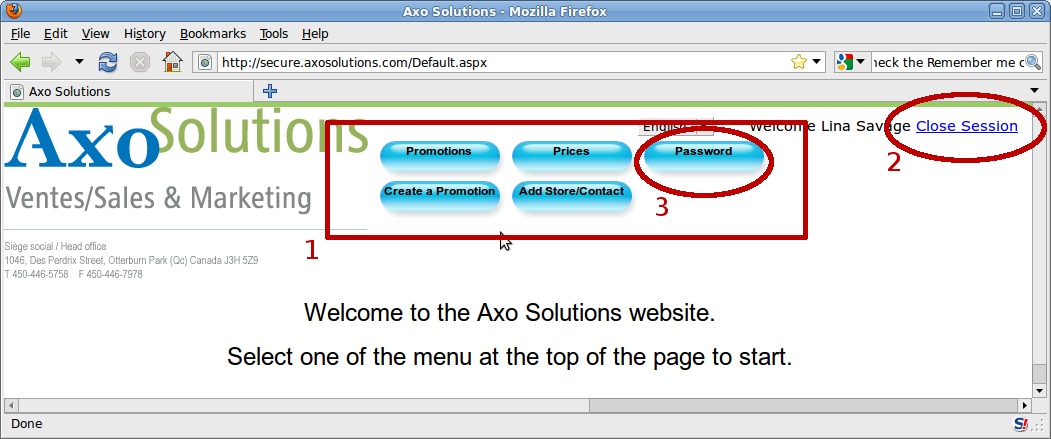
The Welcome screen will show you a page with a Welcome message and an invitation to select one of the menu option (1.) at the top of the page.You can always come back to the Welcome screen by clicking the AxoSolutions logo located at the top left of all pages.
2. Notice the Close Session link at the top-right portion of the page. This link is present on all pages to allow us to log out of the site at any time.
3. Let's click the Password menu to change our password.
Change Password
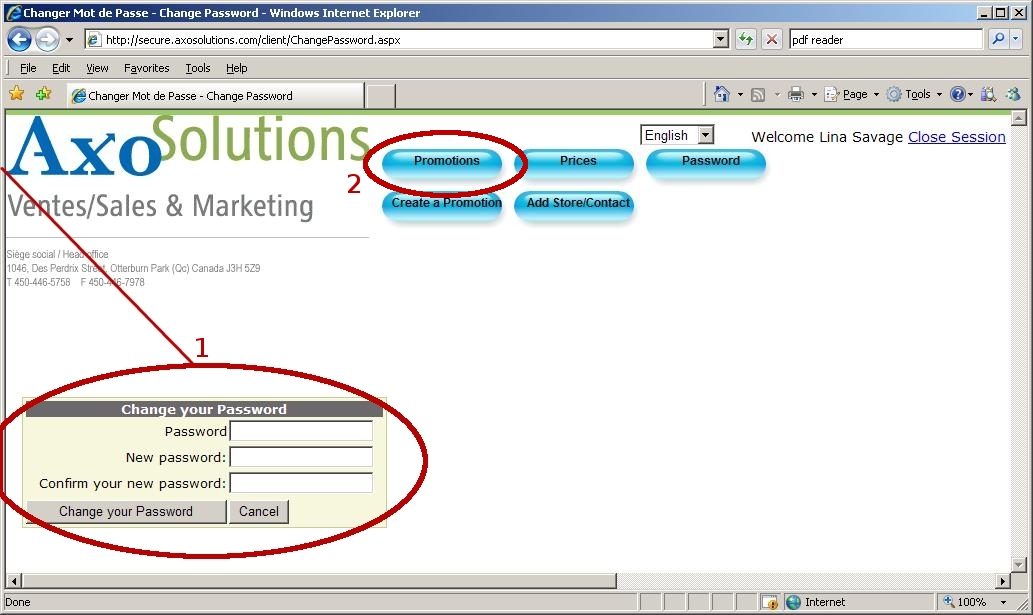
1. We can type in or paste our password in the Password field and type in our new password in the two other fields (New and Confirm). Now we can click the Change your Password button and the new password will be in effect immediately.
It is recommended to change your password as soon as you first log in. This way, no one can impersonate you and look at confidential information under your name.
2. Let's have a look at a Promotions Grid by clicking the Promotions menu.
Promotions Grid
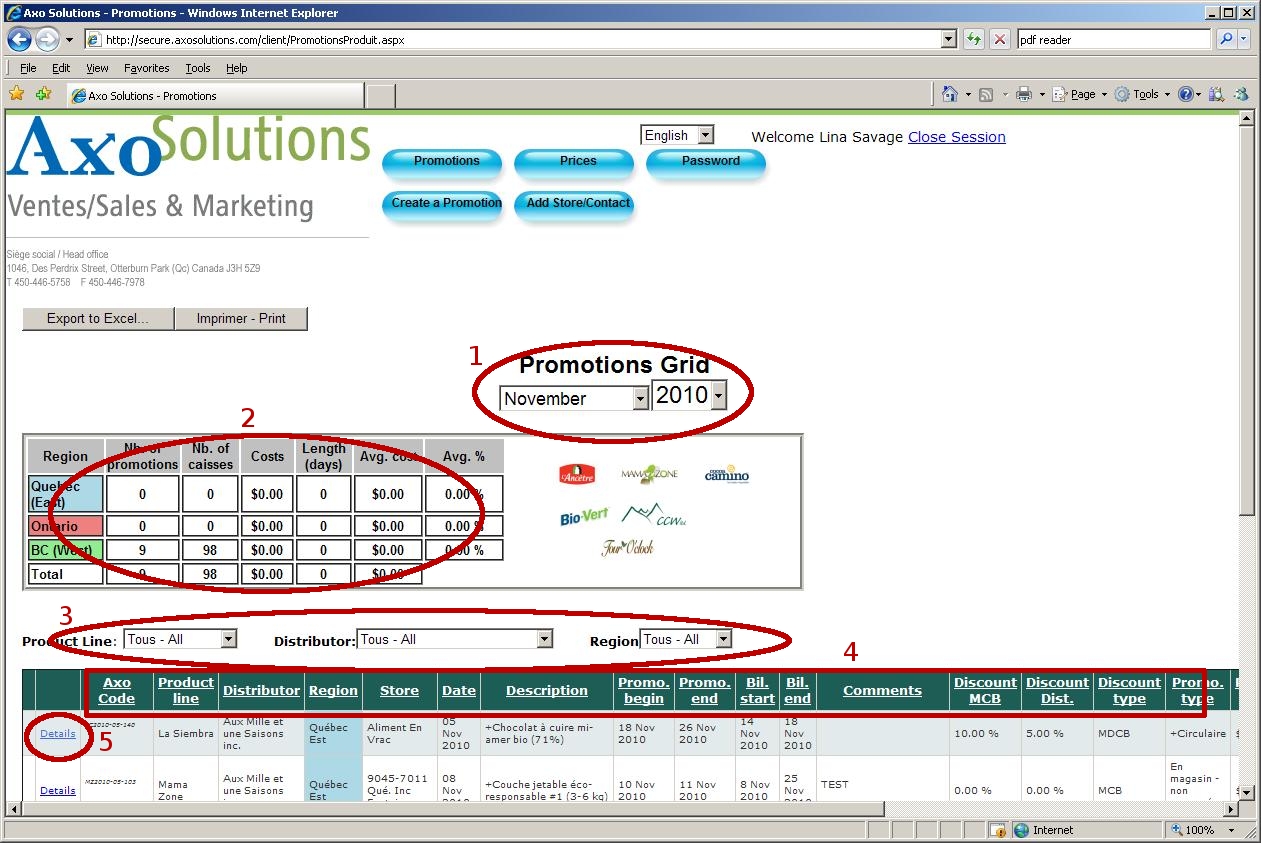
By default, we see the promotions where the beginning dates of the promotion is the current month of the current year.1. We can select the month and the year or select the entire year with the "date bars" located just under the title Promotions Grid.
2. Below the date we can find the report displaying a few totals and averages regrouped by region.
3. Below the report are the Product, Distributor and Region filters. We can filter our result by selecting one or more of these values.
Below the filters is the Result Gridview. One promotion per line is displayed in the gridview.
4. The gridview can be sorted by ascending or descending order by clicking its column name in the gridview itself.
5. To view a promotion's details, we now click on the Details link of it's leftmost column.
Promotion Details
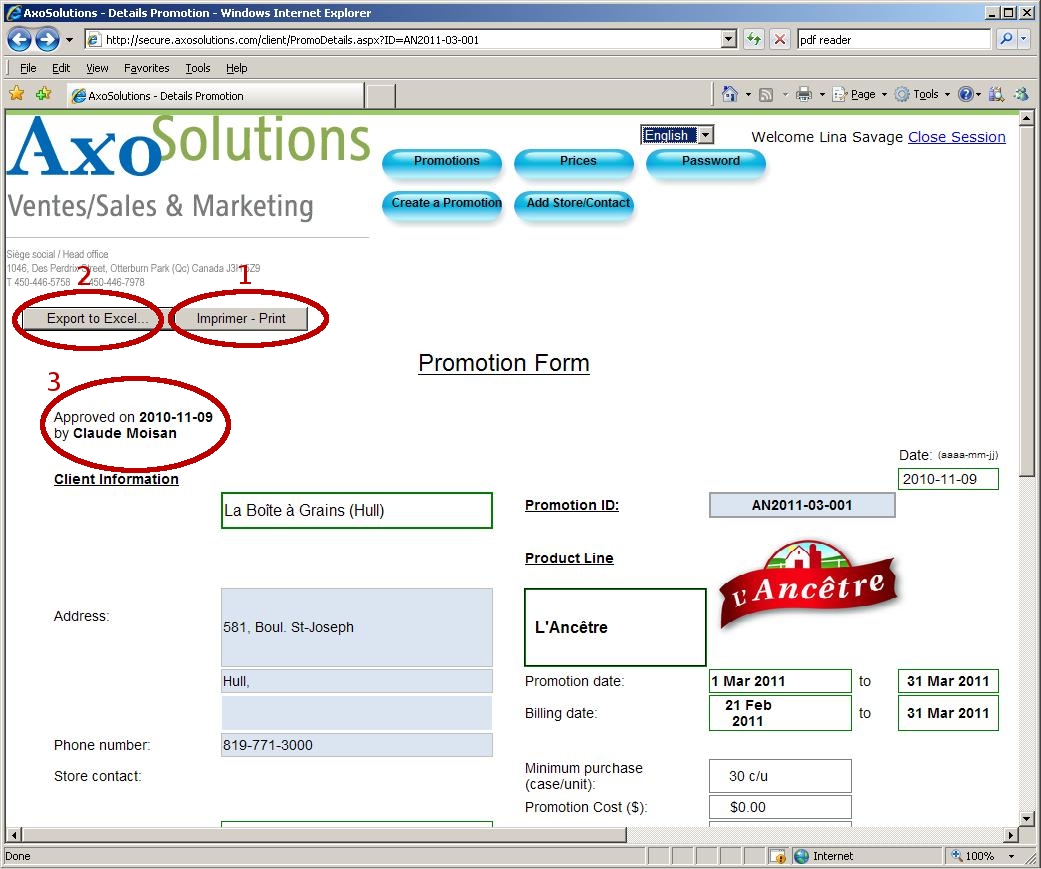
1. From here, we can print the Promotion Form to fax it, archive it or save as a PDF file by clicking the Imprimer - Print button. To save as a PDF file, you might have to install a third party software such as CutePDF or PrimoPDF.It is recommended to save as PDF files instead of Excel files.
2. This promotion can also be saved as an Excel file by clicking the Export to Excel... button.
3. This text let us know that this promotion has been approved, when and by whom.
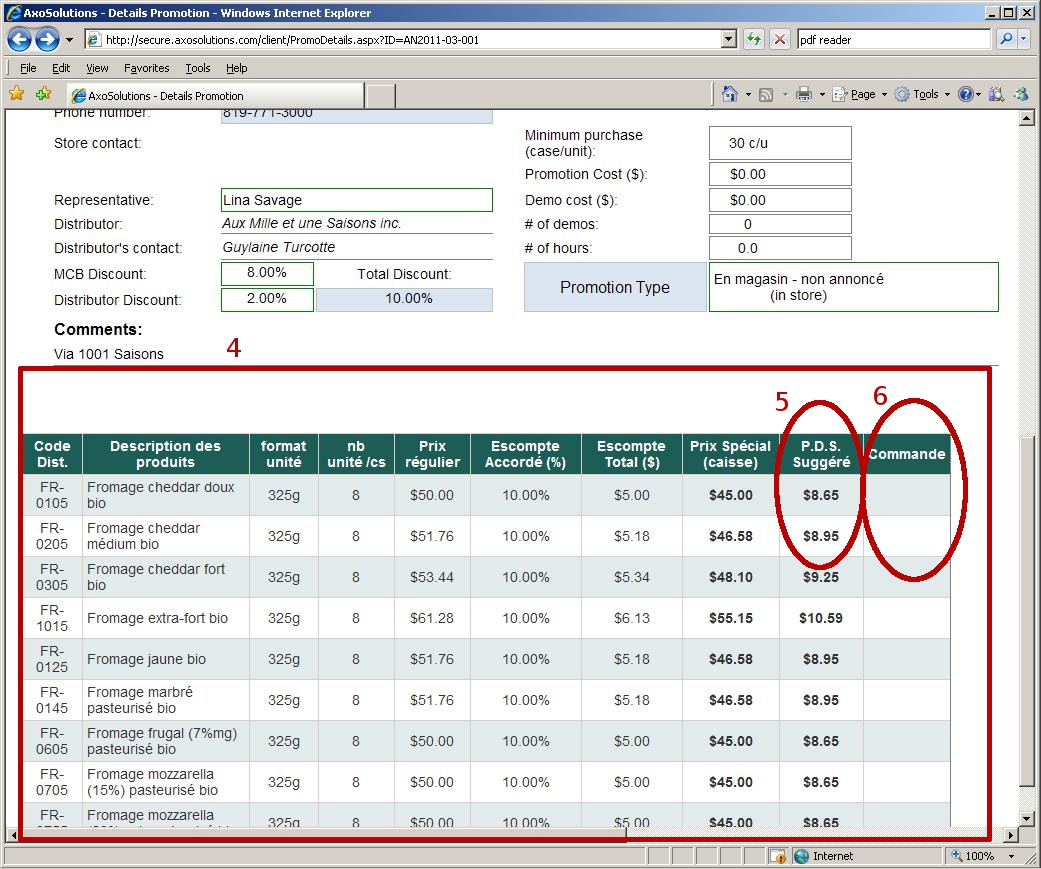
4. Below the comment section is the list of all concerned products, their suggested retail prices (5.) and Order (6. if any, in the rightmost column).
Prices
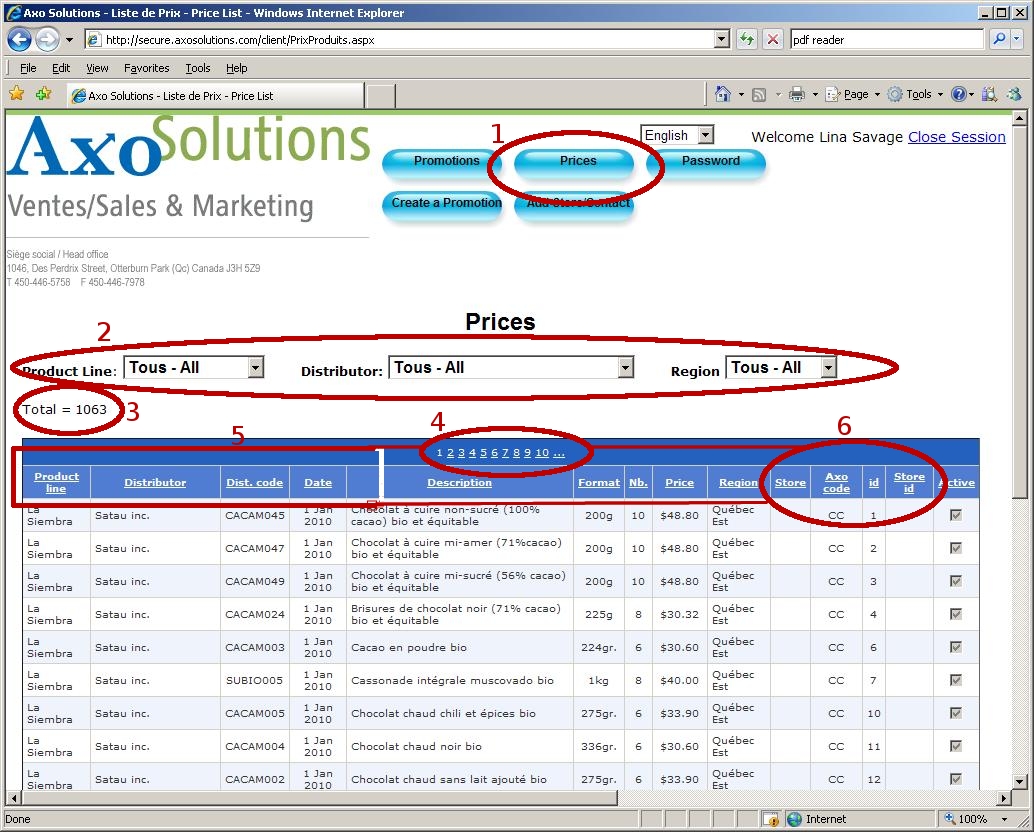
1. Let's click on the Prices menu now.2. Just like the Promotions Grid page, this one has three filters: the Product Line,the Distributor and the Region.
3. Below the filters is the Total number of product/price found by the filter.
Below the Total number is the Result Gridview. One product/price per line is displayed in this gridview.
4. The resulting gridview is paged, meaning that each number at the top (or the bottom) of the gridview represents a page. To view a particular page, we need to click on its corresponding number at the top or the bottom of the gridview.
5. The gridview can be sorted (just like the Promotions Grid) by ascending or descending order when we click on its corresponding column name in the gridview itself.
6. The Store and Store id will show a particular store if the price applies to that store only.
That's it!
If you find a major bug or need further assistance, you can email me here: steph@stephaneguerin.comThank you and have a nice day :)
Stéphane Guérin